

Editor’s Note: First published October 2026. Evidence: Research review — a step-by-step guide written from Google’s own documentation and current Google One plans. No testing claims here; just the method, in order.
Plain-English Verdict: Here’s how to organize Google Drive in one sitting: five folders, a file-naming habit that takes five extra seconds, and a 20-minute cleanup — no new app required. The secret isn’t a cleverer system; it’s fewer places to look. If your Drive currently looks like a junk drawer, start with Step 1 and don’t read ahead.
What we actually did: We read Google’s current storage and Drive documentation and built the simplest folder system that actually works — five folders, tested against the messiest real-world habits we could think of. No affiliate links; we earn nothing from anything mentioned here.
Let’s do this together. Grab a coffee, this takes about an hour.
Step 1: Make five folders and nothing else
Go to drive.google.com, and in My Drive, create exactly five top-level folders:
- 📥 Inbox, the landing pad for everything new and unsorted
- 🗂 Projects, anything you’re actively working on
- 🧾 Records, taxes, receipts, contracts, medical stuff, anything you might need but rarely open
- 🏠 Personal, photos of things, family docs, the stuff that’s yours
- 📦 Archive, finished projects and old stuff you can’t delete yet
That’s it. Five. Every filing decision you will ever make is now “which of these five?”, and that’s the whole trick. Most messes happen because people have 40 folders and every save becomes a decision. Five folders, no decisions.
Quick check: you should now see exactly five folders in My Drive. If you already had folders, don’t delete them yet — leave them where they are for now.
Step 2: Sweep everything into the Inbox
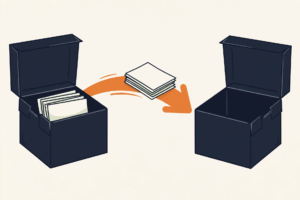
Select everything else in My Drive and drag it all into Inbox. Yes, everything. This feels wrong. Do it anyway.
You haven’t organized anything yet, you’ve just given the mess one door instead of 200. New files land in Inbox from now on; sort it once a month (honestly, monthly is fine).
Step 3: Name files like you’ll search for them
Drive’s search is excellent, but only if the file names mean something. Before you file anything, give it a name future-you would type into the search bar. The formula is simple:
Date + what it is + who it’s from: 2026-04-15 tax return - TurboTax.pdf
Five extra seconds when you save it; five minutes saved every time you search. Never leave anything called “Untitled document”, that name is a tiny curse.
Quick check: rename three of your worst offenders right now. You’ll feel the difference immediately.
Step 4: Sort the Inbox in one pass (the podcast part)
Now work through the Inbox, one file at a time: drag each thing into Projects, Records, Personal, or Archive. Two rules:
- If you can’t decide in three seconds, it goes in Archive. You can move it later. Momentum beats perfection.
- Duplicates go in the trash. Same tax PDF in three places? Keep one, trash the rest. Drive’s trash keeps files for 30 days, so nothing is final today.
Step 5: Empty the trash and check your storage
Here’s the part everyone misses: files in the trash still count against your storage. Go to Trash in the left sidebar, click “Empty trash,” and confirm. That’s it, you’re done with the hard part.
While you’re here, glance at your storage: your free Google account includes 15 GB shared across Drive, Gmail, and Google Photos, when it’s full, you can’t upload or even send email. If the cleanup didn’t free enough, Google One sells more: 100 GB at $2/month ($20/year), 200 GB at $3/month ($30/year), or 2 TB at $10/month ($100/year) (via MakeUseOf’s 2026 Google One guide). The 100 GB tier is plenty for most people, and you can share every plan with up to five family members.
If photos are what’s eating your storage, here’s how to back up your phone photos automatically and free up space.
🔧 Prompt Station, this week’s copyable prompt
Paste this into Gemini, ChatGPT, or Claude before your next sorting session:
I have a Google Drive folder called "Inbox" full of unsorted files:
receipts, screenshots, tax documents, school forms, and random PDFs.
Suggest a simple rule for which of these five folders each type of file
should go in: Projects, Records, Personal, Archive, or "needs my decision."
Keep it short, one rule per file type.
What to do next
Set a 10-minute monthly reminder to empty the Inbox, that’s the entire maintenance plan. And if you ever find yourself creating a sixth top-level folder, stop: make it a subfolder inside one of the five instead. The five-folder rule only works if it stays five.
Method: Research review (no hands-on testing). Cross-checked against Google’s storage documentation and current Google One pricing. Checked October 2026.
Corrections: Spotted an error? Tell us — we fix mistakes publicly and date them.
Prices: US list prices; verify before buying.
Source: MakeUseOf’s Google One guide (2026), checked October 2026.




4 thoughts on “How to Organize Google Drive So You Can Find Anything”