Editor’s Note: New post, October 2026. Steps checked October 15, 2026 against Google Drive Help.
Research review: steps verified October 15, 2026 against Google’s official Drive for desktop and Takeout documentation. No hands-on setup was done for this piece.
Key Takeaways
1. Turn on Mirror files in Drive for desktop, so a full copy of your Drive lives on your computer and updates itself.
2. Add a Google Takeout schedule, so Google emails you a fresh archive every two months for a year.
3. Remember that sync is not a backup: deletions sync too.
In a sentence: Backing up Google Drive automatically takes two free settings, mirroring in Drive for desktop for a live local copy, and scheduled Takeout exports for an archive that sync mistakes cannot touch.
Plain-English Verdict
Do both parts. Mirroring gives you a complete, self-updating copy on your own computer. Scheduled exports give you a dated snapshot stored somewhere else, the only copy that survives an accidental delete, because a delete in a synced folder helpfully deletes everywhere. Fifteen minutes to set up, then both run without you.
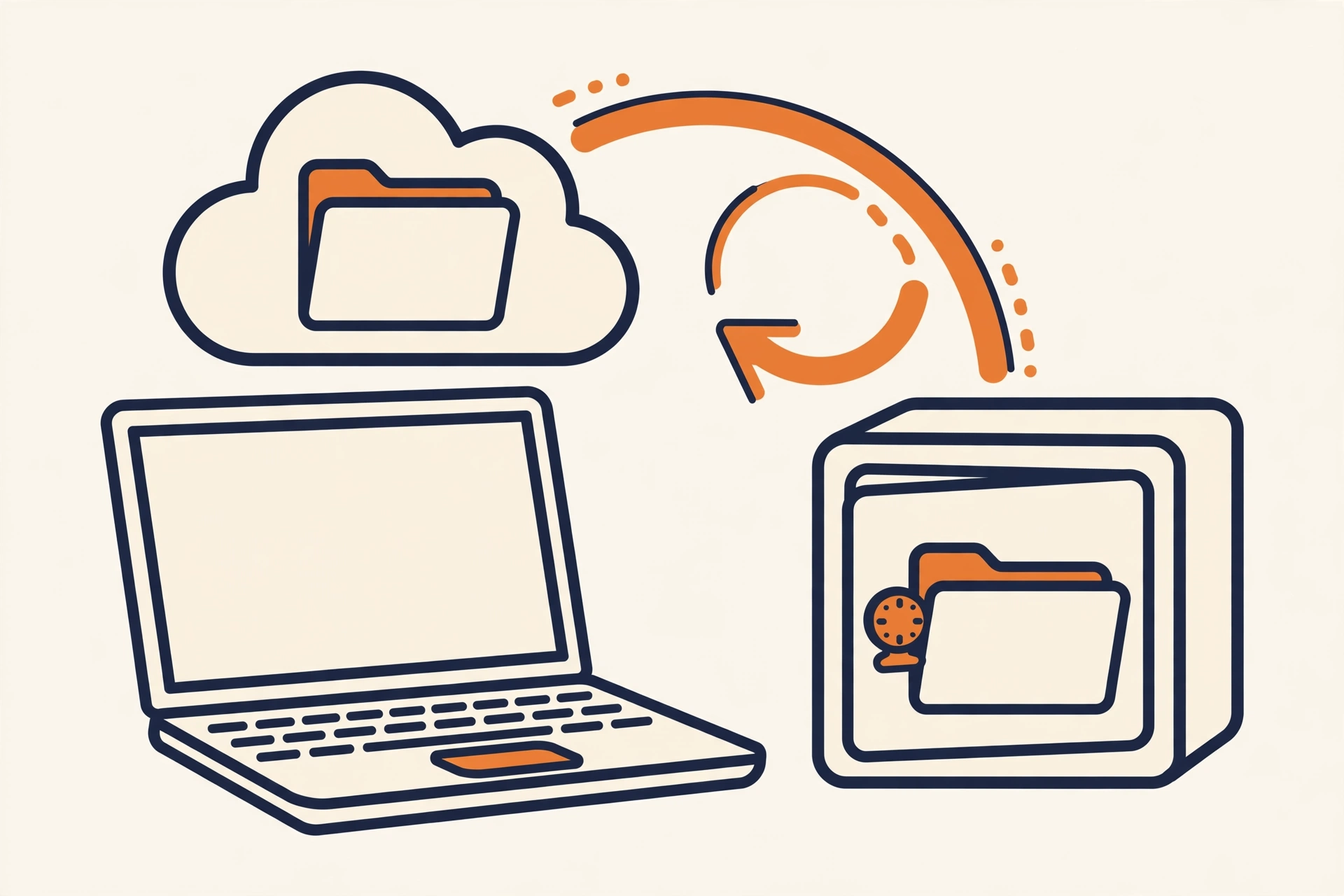
Here’s what backing up Drive does in one sentence: it makes a second copy of your Drive files somewhere that is not Google Drive, and keeps it fresh on its own. If you organized your Drive with our five-folder system, this is the natural next project.
Jargon Decoder
Sync means two copies kept identical, in both directions, including deletions. Backup means a separate copy kept for recovery. Sync is convenient. Backup is what saves you. This guide sets up one of each.
Let’s do this together.
Step 1: Install Drive for desktop and sign in
Download Drive for desktop from Google’s Drive download page, install it, and sign in with the account whose Drive you want to protect. Quick check: the Drive icon in your system tray (Windows) or menu bar (Mac) should show your account and an “up to date” status.
Step 2: Switch My Drive to Mirror files
This is the setting that matters, and the default is the other one.
- Click the Drive icon, then the gear icon, then Preferences.
- On the left, click Folders from Drive.
- Under “My Drive syncing options,” choose Mirror files.
Mirroring stores a full copy of My Drive in a folder on your computer, available offline and even when the app is not running, because they are ordinary local files (via Google Drive Help). Streaming, the default, downloads files as you open them: it saves disk space but leaves no complete copy on your machine. Mirroring needs free space roughly equal to your Drive’s size, and shared drives can only be streamed, so they sit outside this layer.
Quick check: open the mirrored folder in Finder or File Explorer, disconnect from wifi, and open a file. If it opens, mirroring works.
Step 3: Schedule a Takeout export every two months
Mirroring protects you if Google has a bad day. It does not protect you from yourself: a file deleted in Drive disappears from the mirrored folder too. For that, you want a snapshot that cannot update itself out of existence.
- Go to takeout.google.com and sign in.
- Deselect all, then select only Drive (add Photos only if you want your photo library in the same archive).
- Click Next step. For delivery, choose the email download link.
- For frequency, choose the scheduled option: export every two months for one year.
- Choose ZIP files and a split size you can download comfortably (2 GB is a safe default), then Create export.
Download each archive promptly when the email arrives: Takeout links expire in about a week. Store it somewhere that is not the Drive you just backed up (an external drive or a different cloud account). The schedule makes six exports over the year, then stops, so set a calendar reminder for next October to create it again. That reminder is the only manual step in the whole system.
Step 4: Know the small print
Two honest limits. Deleted files sit in Drive’s trash for 30 days, which covers most “oops” moments; a backup you control covers the rest. And these copies protect your files, not your account: if you lose access to the Google account itself, the exports you actually downloaded are what you still own.
Prompt Station: Paste this into ChatGPT or Claude: “Make me a one-page Google Drive backup checklist: mirror files in Drive for desktop, a Takeout export schedule every two months, a yearly reminder to renew the schedule, and where to store each archive. Keep it under 10 steps and never ask me for any password or code.” Open in ChatGPT · Open in Claude
Keep reading
- How to Organize Google Drive So You Can Find Anything: the tidy-up this backup protects.
- What Is Cloud Storage, Actually?: where your files really live, and the exit-plan questions to ask.
Method: Research review (no hands-on testing). Steps cross-checked against Google Drive Help’s stream and mirror documentation and Google Takeout’s scheduled-export options as reported in June 2026 coverage. Checked October 15, 2026.
Corrections: Spotted an error? Tell us. We fix mistakes publicly and date them.
Source: Google Drive Help: Stream and mirror files with Drive for desktop (via Google), checked October 15, 2026.
Like plain-English tool guides? Our newsletter rounds up the week’s posts every Saturday. Join here.