Research review: pricing and features verified Oct 12, 2026 against official pages and published comparisons. No hands-on walkthrough, no testing claims.
You already have a password manager. It came with your iPhone. It lives in the Passwords app, it fills in your logins, and it has never once asked you for money. So the real question is not “which password manager should I buy?” It is “why would I ever pay for one?”
Fair question. We asked it too. And the honest answer is that for a lot of people, Apple Passwords is genuinely enough. But there is a specific kind of household, and a specific kind of digital life, where 1Password earns its price tag. This guide will help you figure out which one you are.
In a sentence: If everyone you share passwords with uses Apple devices, stick with the free Apple Passwords; if your household mixes iPhones with Androids or Windows PCs, 1Password is worth the $47.88 a year.
Plain-English Verdict
Apple Passwords covers the basics for free and fits Apple-only households beautifully, with passkeys, shared groups, and security warnings built in. 1Password is the better buy when your devices are a mixed crowd, you want organized family vaults with real permissions, or you need your passwords on a web browser anywhere. Most people reading this on an iPhone should stay put and spend the money on something nicer than software.
What we actually did: We spent a full research day cross-checking both products against their official pages, including 1Password’s pricing page (which changed in March 2026) and Apple’s Passwords user guide, plus recent 2026 comparisons from publications like Impressive Magazine and Switching to Mac. We did not install, sign up for, or test either app, so everything here is documented features and current pricing, not firsthand testing. This site earns nothing if you pick either one. There are no affiliate links anywhere on this page.
The 60-second decision tree
Skip the review. Find your branch.
- If everyone in your house uses iPhones, iPads, or Macs: use Apple Passwords. It is already there, it syncs through iCloud, and the family sharing setup takes minutes.
- If there is one Android phone in the mix: get 1Password. Apple Passwords has no Android app at all, so that one phone becomes a permanent headache.
- If you share logins with your kids’ school accounts, a partner, and a few trusted friends: 1Password’s shared vaults give you actual control over who sees what. Apple’s shared groups are simpler, but every member can edit or delete anything.
- If you mostly just need Netflix, email, and the bank to log in without thinking: Apple Passwords. That is exactly the job it was built for.
- If you want your passwords available on any computer you sit down at: get 1Password. It has a web vault you can open in any browser, while Apple Passwords has no equivalent on iCloud.com.
- If the word “subscription” makes you twitch: Apple Passwords costs zero dollars forever. That is a perfectly good reason all by itself.
If you are new to the whole idea, our explainer on what a password manager is covers the basics before you keep reading.
1Password: the paid workhorse
1Password has been the go-to paid password manager for years, and its core pitch has not changed: one secure vault that follows you everywhere, on every kind of device, with serious tools for families who share logins.
What we like
- It runs on everything. iPhone, Android, Mac, Windows, Linux, and every major browser. If your household is a device zoo, this is the one that speaks to all the animals.
- Family vaults with real permissions. The Families plan covers up to five people (extra members are $1 a month each), and organizers get tools like account recovery for locked-out relatives. That last one matters more than it sounds. We have all been the tech support line for a parent.
- Watchtower. 1Password’s security dashboard flags weak, reused, or compromised passwords and tells you what to do about them. Think of it as a smoke alarm for your logins.
- Travel Mode. When you cross a border, you can temporarily hide selected vaults from your devices. A niche feature, but a beloved one among people who need it.
- Passkeys, verification codes, and file storage. It handles modern passkeys, stores two-factor codes alongside your logins, and lets you keep copies of documents in your vault. Our guide to two-factor authentication explains why the codes part matters.
- 14-day free trial. You can kick the tires before paying, which is the polite thing for paid software to offer.
What could be better
- The price went up in March 2026. Individual rose from $2.99 to $3.99 a month billed annually ($35.88 to $47.88 a year), and Families rose from $4.99 to $5.99 a month ($59.88 to $71.88 a year). That is a 33% jump on the individual plan, and it stung enough that comparison sites are still writing about it (via SmashingApps’ 2026 comparison).
- There is no free tier. Not even a limited one. The trial ends, and then you pay or you leave.
- The Mac app is heavier than it used to be. 1Password moved its desktop app to Electron (a framework that wraps web technology, so the app behaves a bit like a website running on your computer), and some long-time Mac users say it feels slower and less native than the old version.
Pricing
Individual: $3.99 a month billed annually, which comes to $47.88 a year. Paying month to month costs about $4.99 a month. Promotional discounts for new signups sometimes appear, but plan on the list price.
Families: $5.99 a month billed annually, which comes to $71.88 a year for up to five people. Extra members are $1 a month each.
For a wider field of paid options, see our 1Password vs Bitwarden comparison.
Our take
1Password is the best choice when your digital life does not fit inside one company’s walls. Mixed devices, a partner on Android, a Windows laptop for work, logins you need on a public computer at the library: this is the tool that handles all of it without complaint. The price hike makes it harder to love, but the feature set is still the most complete in the business.
Apple Passwords: the free one you already own
Since iOS 18 and macOS Sequoia, Apple’s old iCloud Keychain has grown into a proper standalone app called Passwords. It lives on your iPhone, iPad, Mac, and Vision Pro, and it syncs everything through iCloud with end-to-end encryption.
What we like
- It is free, and it is already set up. If you have an iPhone and an iCloud account, you have a password manager. The setup friction is roughly zero, and in security, the tool people actually use beats the better tool they never install.
- The basics are all covered. Autofill in Safari and apps, strong password suggestions, passkeys that unlock with Face ID, built-in two-factor verification codes, and security warnings about weak or exposed passwords.
- Shared Groups for families. You can create a group, invite trusted contacts with Apple IDs, and share selected passwords and passkeys. When someone changes a password, everyone gets the update automatically.
- One-off sharing is easy. You can send a single login to another Apple user over AirDrop or Messages without giving them the keys to your whole vault.
- It is deeply woven into the system. On an Apple-only setup, filling a login feels less like using an app and more like the phone just knowing what to do. As Switching to Mac’s 2026 comparison put it, the integration works especially well on a personal Mac that already uses iCloud (via Switching to Mac).
What could be better
- No Android app, and none coming. This is the big one. A single Android phone in the family breaks the whole arrangement.
- Sharing is simple but blunt. In a Shared Group, every member can add, view, edit, or delete anything, and only the group owner can add or remove people. That is fine for a partner or close family, but it is not real permission control. Also note Apple’s own warning: if someone leaves a group, they may still have passwords they were given, so change those credentials afterward (via Impressive Magazine’s 2026 comparison, which cites Apple’s support pages).
- Windows support exists but with strings attached. You need iCloud for Windows plus the iCloud Passwords browser extension, an Apple Account with two-factor authentication, and either Advanced Data Protection turned on or your Apple device within Bluetooth range of the PC. That last requirement surprises almost everyone (via Coffee and Fun’s writeup, which cites Apple’s own documentation).
- No web vault, no secure notes, no file storage. There is no password vault at iCloud.com, no general-purpose notes field, and no way to stash documents. You get logins, passkeys, Wi-Fi passwords, and verification codes. That is the whole menu.
- It needs iCloud. Syncing requires an Apple device and an iCloud account, and 2FA on your Apple Account is required for the Windows setup.
Pricing
Free. $0, forever, included with your Apple device and iCloud account. There is no paid tier, no upsell, no trial that expires. The catch, such as it is, is that you need to be inside Apple’s world to use it.
Our take
Apple Passwords is the rare free thing that is actually good. If your household is all Apple, there is very little reason to pay for anything else. It is not the most powerful password manager, but it is the one with the shortest path between you and good security habits, and that counts for a lot. When you are ready to move your logins into it, our password manager setup guide walks through the process step by step.
Why choose it over the other?
Choose 1Password over Apple Passwords when your devices refuse to stay in one ecosystem. The moment an Android phone, a Linux machine, or a work Windows PC enters the picture, Apple’s free option starts creaking and 1Password starts earning its keep. Choose it too if you want organized family vaults with recovery tools, a web vault you can open anywhere, or a place to store documents alongside logins.
Choose Apple Passwords over 1Password when everyone involved uses Apple devices and your needs are ordinary: logins, passkeys, a few shared streaming accounts, Wi-Fi passwords. You get roughly 80% of the practical value for $0, and the money you save buys a very nice dinner. There is no shame in the free option winning. That is the whole point of this comparison.
Pricing and features at a glance
| 1Password | Apple Passwords | |
|---|---|---|
| Cost | $47.88/yr Individual; $71.88/yr Families (billed annually) | Free |
| Free tier | No (14-day trial) | Yes, fully free |
| Android | Yes | No native app |
| Windows | Full app | Via iCloud for Windows plus browser extension, with extra setup requirements |
| Web vault | Yes | No |
| Passkeys | Yes | Yes |
| Verification codes (2FA) | Yes | Yes |
| Family sharing | Shared vaults with organizer controls and account recovery | Shared Groups; all members can edit everything |
| Secure notes and files | Yes | No |
| Security reports | Watchtower | Basic security recommendations |
| Requires | A subscription | An Apple device and an iCloud account |
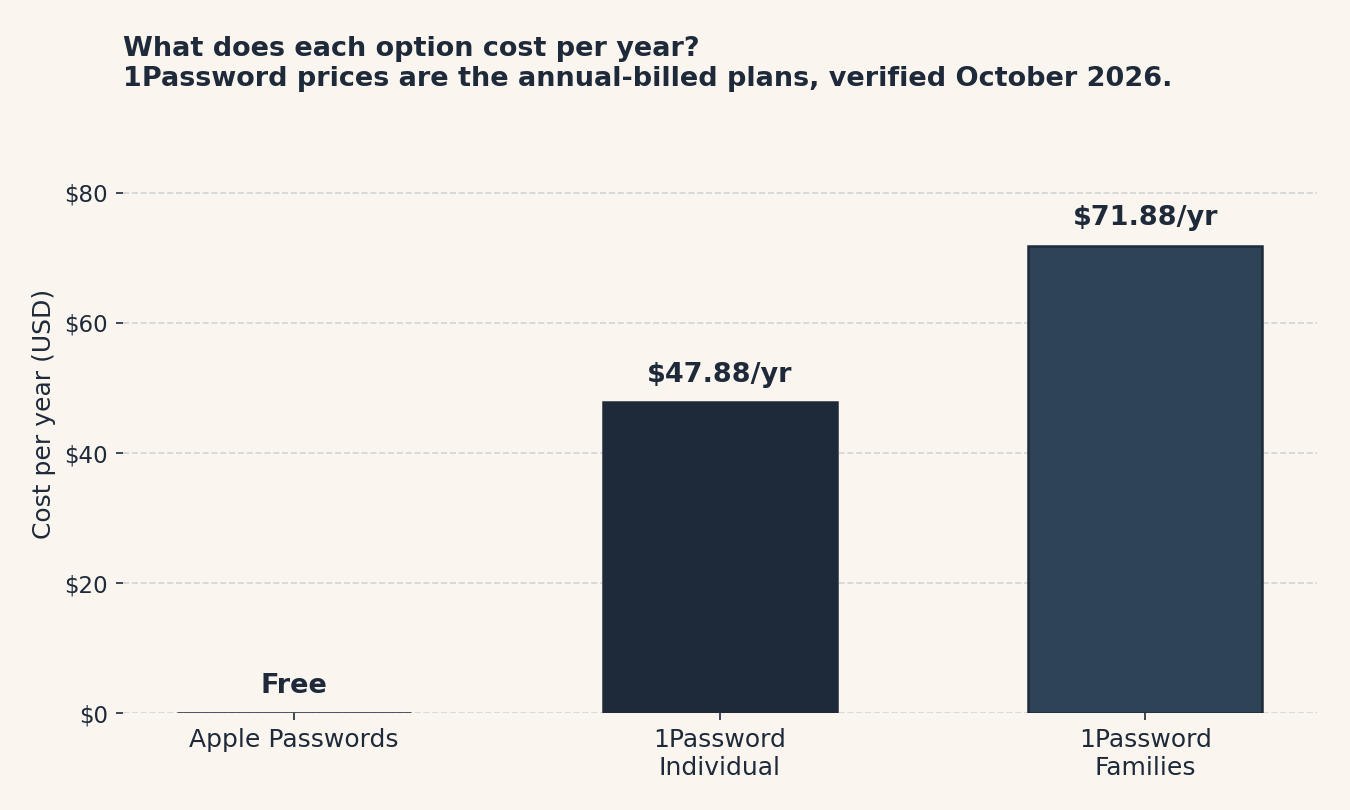
Annual cost comparison. 1Password prices reflect the annual-billed plans at the 2026 list prices verified October 12, 2026.
Jargon Decoder
Zero-knowledge means the password company encrypts your vault on your device in a way even they cannot undo, so your data can only ever be unlocked with your master password.
Our picks
Our pick for most people: Apple Passwords. Most households reading a plain-English blog are Apple-heavy, and the free tool covers the job. Start there.
Budget pick: Apple Passwords again, because free is the cheapest budget there is. If you are on Android and need free, that is a different comparison entirely (see our 1Password vs Bitwarden piece for the paid field).
If your family mixes Apple and Android, get 1Password Families. At $71.88 a year for five people, it costs less per person than most streaming services, and it is the only way everyone stays in the same vault.
If you travel with sensitive logins, get 1Password Individual. Travel Mode alone is worth the $47.88 a year for people who cross borders with work credentials.
Frequently asked questions
Is Apple Passwords really free?
Yes. It is built into iOS 18, iPadOS 18, macOS Sequoia, and visionOS, and syncs through your iCloud account at no charge. The only “cost” is owning an Apple device.
Can I use Apple Passwords on Android?
No. There is no Android app, and you cannot reach your vault from a browser on Android either. If Android is in your life, you need a cross-platform manager like 1Password.
Did 1Password really raise its prices?
Yes, on March 27, 2026. Individual went from $2.99 to $3.99 a month billed annually ($47.88 a year), and Families went from $4.99 to $5.99 a month ($71.88 a year). Existing subscribers saw the new rates at their next renewal.
Is 1Password safer than Apple Passwords?
Both use strong encryption and a zero-knowledge design, meaning neither company can read your vault. 1Password adds extras like Watchtower monitoring, but for everyday use, Apple’s built-in protection is solid.
Can I switch from one to the other later?
Yes. Both let you export your passwords to a standard file, and both can import from the other. Pick the one that fits today; you are not locked in.
Method: Research review (no hands-on testing). Cross-checked against 1Password’s official pricing page, Apple’s Passwords user guide, and published 2026 comparisons from SmashingApps, TechDrifting, Switching to Mac, Impressive Magazine, and Coffee and Fun. Checked October 12, 2026.
Corrections: Spotted an error? Tell us. We fix mistakes publicly and date them.
Prices: US list prices; verify before buying.
Source: 1Password’s official pricing page
Related Posts
 1Password vs Bitwarden: Which Password Manager Should You Use? (2026)
- Canva vs Adobe Express: Which Is Better for Non-Designers? (2026)
- Notion vs Obsidian: Which Note App Is Right for You? (2026)
- Fathom vs. Otter.ai: Which AI Meeting Notes App Should You Use? (2026)
- Zapier vs. Make: What Automation Actually Costs You (2026)